


You can now add NotPanel as a provider in Perfect Panel. Create an API key in your NotPanel account, enter https://notpanel.com/api/v3 in Perfect Panel’s provider settings, and save the connection. Then check your balance, import the services you want to sell, and set your retail prices.
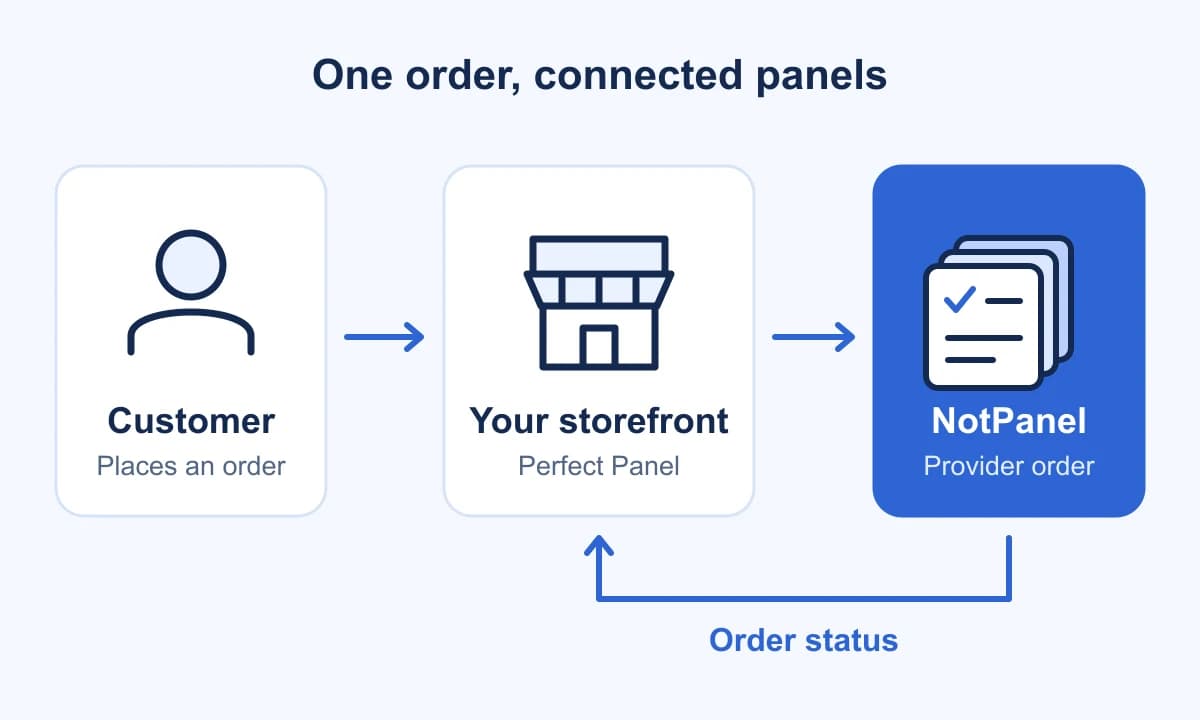
Your customers continue ordering through your storefront. For services linked to NotPanel, Perfect Panel sends the order to NotPanel and checks its status. You manage the customer-facing names, prices, and support in your own panel. Here is how to set up that connection and check it before taking customer orders.
What you need before connecting
- A NotPanel account with access to the API page.
- Admin access to a regular Perfect Panel storefront.
- Enough money in your NotPanel wallet for the test order you choose.
This guide applies to regular Perfect Panel storefronts. A child panel uses its parent regular panel as its single provider, as explained in Perfect Panel’s provider guide. You can check the connection before funding NotPanel; a paid test order comes later.
1. Create your NotPanel API key
- Sign in to NotPanel and open Dashboard → API.
- Choose the option to generate a new API key.
- Give it a label such as Perfect Panel storefront, then select Generate.
- Copy the full key from the confirmation window before closing it.
NotPanel displays the full key once. The shortened prefix shown in your key list afterward will not work as a replacement. A separate, clearly labelled key also makes it easier to identify this connection later.
This is the key from your NotPanel account, not a Perfect Panel Admin API key. Paste it only into the private provider settings. Keep it out of customer pages and screenshots.
2. Add NotPanel in Perfect Panel and check the balance
Open your Perfect Panel admin area, go to Providers, and choose Add provider. If your admin navigation groups providers under Settings, open that section first.
| Field | What to enter |
|---|---|
| Provider URL | https://notpanel.com/api/v3 |
| API key | The full API key you just generated in NotPanel |
Enter the complete address, including /api/v3. This is the URL verified for NotPanel’s Perfect Panel connection. The API URL shown on your NotPanel API page also uses this endpoint.
Save the provider, then check the balance displayed for NotPanel. Compare it with your NotPanel wallet. NotPanel reports its API balance in USD. A retrieved 0.00 USD balance may simply mean you have not added funds yet; an authentication error or a balance that cannot be retrieved is a different result.
Money deposited by customers into your storefront does not automatically top up your NotPanel wallet. Keep enough provider balance available for the orders your storefront sends.
3. Import the services you actually want to sell
Open your service-management area and use its import or synchronization option to load services from NotPanel. Select NotPanel as the provider, then choose the services to add. Start with a small selection you can review carefully.
Before enabling a service for customers, check:
- Provider service ID: keep the imported NotPanel service ID attached to the correct storefront service, even if you rename it.
- Order requirements: confirm the required link or username, service type, and minimum and maximum quantities.
- Price unit: check whether the rate is per 1,000 units or uses another unit, such as a package.
- Customer description: make the service’s scope and requirements clear in your own storefront.
Use the NotPanel catalog to compare services before importing them. Where available, the average start time helps you judge when delivery begins, while order-based likes and dislikes add customer feedback. Those are selection aids in NotPanel; do not assume every detail appears automatically in your Perfect Panel storefront.
Check which fields your synchronization settings update. You should know whether later syncs change names, descriptions, availability, or prices before relying on them to maintain your catalog.
4. Set your markup and check the final selling price
Set the markup in your import or pricing settings, or enter your retail price directly. Then inspect the saved customer-facing rate. Your NotPanel provider cost and your storefront selling price are two separate amounts.
For a hypothetical service priced at $2.00 per 1,000, a 25% markup gives this result:
| Calculation | Amount per 1,000 |
|---|---|
| Provider cost | $2.00 |
| Markup: $2.00 × 25% | $0.50 |
| Selling price: $2.00 + $0.50 | $2.50 |
The $0.50 difference is before payment fees and your other costs; it is not net profit. This example assumes both prices are in USD. If your storefront uses another currency, check its conversion settings and the final price customers see. Recheck your pricing when provider rates change.
5. Run one small order through your storefront
A balance check confirms that the provider account can be reached. A small order checks the next part: whether your selected service, customer inputs, pricing, and status updates work together.
- Choose one imported service and a quantity within its allowed range. Use a valid target you are authorized to test.
- Place the order through your storefront so the test follows the same route as a customer purchase.
- Confirm that the matching order appears in NotPanel with the intended service, target, and quantity. Keep both panels’ order references.
- Check the provider charge and your storefront’s selling price, then confirm that subsequent order-status changes appear in Perfect Panel.
This is a real paid order, so choose its size deliberately. If the order is already visible in NotPanel but Perfect Panel has not updated yet, check its synchronization and the existing order before submitting anything again. A delayed update alone is not a reason to create a second order.
If something does not look right
Perfect Panel does not recognize the provider
Check that the provider URL is exactly https://notpanel.com/api/v3, including the API path and without extra spaces. You can look up the domain notpanel.com in Perfect Panel’s supported-provider checker. If it is still rejected, give Perfect Panel support the domain and exact error so they can check the provider entry in your panel.
The provider is saved, but its balance cannot be loaded
Confirm that you pasted the complete NotPanel key, not its shortened list prefix, and that the key is still active. If you replaced a key, update the saved provider connection too. A NotPanel API access notice should be resolved from your NotPanel account before retrying.
Services are imported, but an order is rejected
Check your NotPanel funds, the mapped provider service ID, current service availability, the quantity limits, and the target format. Some services accept only one active order per link at a time, and a paused service stays in the list but refuses new orders. A drip-feed order needs 2 to 100 runs, 1 to 1,440 minutes apart, and must finish within 48 hours. Review the actual error before changing settings. Special service types can require different inputs, so test those separately before offering them to customers.
The two panels show different order information
Compare the provider order reference and current NotPanel status. Give support both order references and the error or outdated status you see; remove API keys from any screenshots. For a missing status update in your storefront, Perfect Panel support can inspect the connection. For a question about the NotPanel order itself, use NotPanel support.
Frequently asked questions
Can I add NotPanel as a provider in Perfect Panel?
Yes. NotPanel is integrated with Perfect Panel. If you manage a regular Perfect Panel storefront, add NotPanel in your provider settings using https://notpanel.com/api/v3 and an API key from your NotPanel account, then check the balance and import the services you want to sell.
Which NotPanel URL should I enter in Perfect Panel?
Enter https://notpanel.com/api/v3 in the provider URL field. Use the complete HTTPS address, including /api/v3, together with your NotPanel API key. This is the URL verified for the NotPanel connection in Perfect Panel.
Can I connect NotPanel to a Perfect Panel child panel?
Perfect Panel child panels use the regular panel they belong to as their single provider. This guide is for a regular Perfect Panel storefront where you can manage external providers.
Does a zero provider balance mean the connection failed?
No. A successfully retrieved balance of 0.00 USD can be correct for an unfunded NotPanel account. Check it against your NotPanel wallet. You need sufficient NotPanel funds before placing a paid order.
Connect your storefront to NotPanel
Create your NotPanel account, generate a key on the API page, and add NotPanel in Perfect Panel. Start with a few services, confirm their selling prices, and follow one order through both panels before opening them to customers.
Building your own software instead? The NotPanel API integration guide covers direct requests, service mapping, and order recovery.